

If you’re used to updating your iPhone every few months, you’ll instantly understand why checking your Agilent GC firmware matters. Just like iOS updates fix bugs and improve performance, new firmware versions can make your GC run smoother, handle glitches, and stay stable. In this friendly walkthrough, I’ll show you how to check your current firmware and update it safely — step by step.
Why Updating Agilent GC Firmware Matters
Updating Agilent GC firmware isn’t something we do every day, yet it often brings improvements you don’t want to miss. Sometimes the update enhances reliability. Other times it fixes minor issues that can quietly affect your results. Because of that, it helps to check Agilent’s website once in a while for updated versions.
1. How to Check Your Current Agilent GC Firmware
Agilent 7890 Series
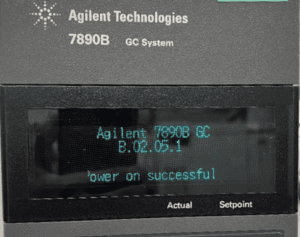
Press Status, then Clear on the GC keypad.
Your firmware version will appear. For example: B.02.05.1
Agilent 8890 Series
On the touchscreen:
Settings → About
You’ll see the GC firmware version listed clearly.
2. Go to Agilent’s Firmware Download Page
Visit:
👉 https://www.agilent.com/en/support/gas-chromatography/gc-systems/gc-firmware-update
If the link ever breaks, simply Google “Agilent GC firmware update” and click the official Agilent support page.
3. Compare Your Version With the Latest One
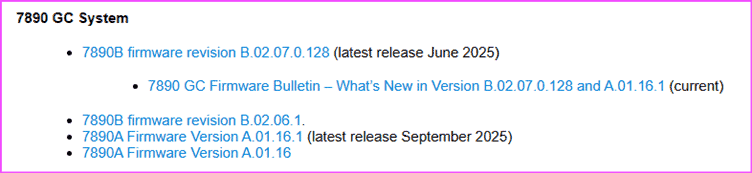
On the Agilent website, find your GC model (e.g., 7890A, 7890B, 8890).
If your current version is older than the latest available version, B.02.07.0.128 in the snip below, then an update is available.
4. Check Your Firmware Update Utility Version
If you’ve installed the tool before, check your PC:
Control Panel → Programs
Look for Agilent GC Firmware Update Utility.
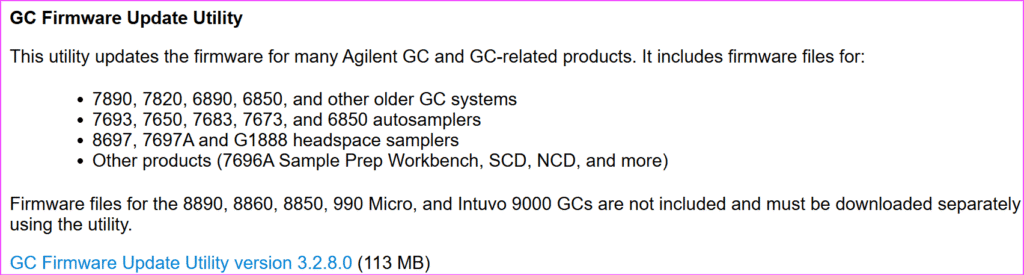
Now compare your version with the latest one shown on the Agilent page.
If yours is older, uninstall yours and download the newest tool.
📌 Note: For Agilent 8890, firmware files are too large to bundle with the tool, so you need to download them separately from the same Agilent page.
5. Install the Latest Firmware Tool
Run the installer and keep all default settings. It’s straightforward.
6. Launch the GC Firmware Update Tool
You’ll see an icon on your desktop named:
Agilent GC Firmware Update
Open it.
7. Select the GC
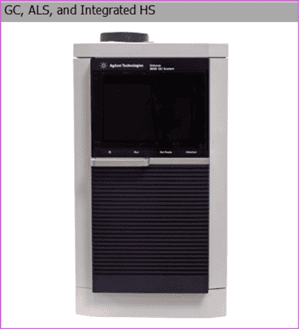
Click the GC image on the tool interface.
8. Choose Model → Select Firmware Update → Close GC Software
Pick your GC model from the list.
Then choose Firmware Update.
Finally, close your GC data system (OpenLab, ChemStation, MassHunter, etc.).
9. Connect to the GC
If using the same PC that controls the GC:
Enter the GC IP Address and press Connect.
If using a different PC:
- Connect a LAN cable from PC to GC
- Open Network & Sharing Center
- Select your Ethernet adapter
- Open Properties → IPv4
- Match the first 3 IP blocks to your GC
- Set the last block between 1–255
- Use the same subnet mask as the GC
To find the GC’s network info:
- 7890: Options → Communication
- 8890: Settings → Network Settings
10. Start Updating the Agilent GC Firmware
After connecting:
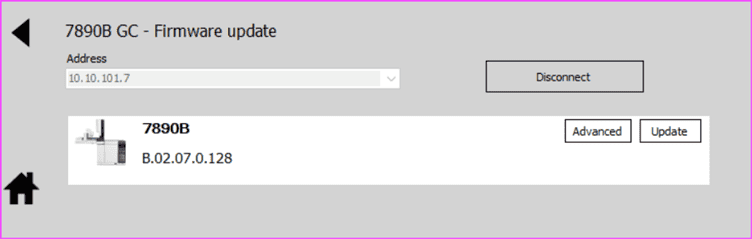
- The tool displays your GC model and current firmware
- Click Update
- Click Accept and Install
- Navigate to:
C:\ProgramData\Agilent Firmware Files
Choose the correct folder (e.g., 7890A vs 7890B) and select the .bin file with the latest version.
Once selected, the update starts.
The GC will reboot automatically — don’t press anything.
After reboot, you’ll see the updated version on-screen.
11. Final Steps
- Click Disconnect
- Close the Firmware Update Utility
- Reconnect your PC to the GC (if you swapped PCs)
- Launch your GC software as usual
Your Agilent GC firmware is now up to date!
Key Takeaways
- The Agilent GC firmware update process is simple and keeps your GC more stable.
- Checking Agilent’s support page occasionally ensures you never miss performance improvements.
- Always download the latest Firmware Update Utility before updating.
- For 8890-series models, download firmware manually as files are large.
- Never interrupt the GC during firmware transfer or reboot.
Before You Leave
If this guide helped demystify the Agilent GC firmware upgrade process, stay tuned — more GC maintenance and troubleshooting posts are coming. Sharing the post with teammates helps everyone keep their instruments running smoothly.
For more GC software tips, you can browse the GC Software section or visit the GC Troubleshooting on my website for hands-on troubleshooting guides.