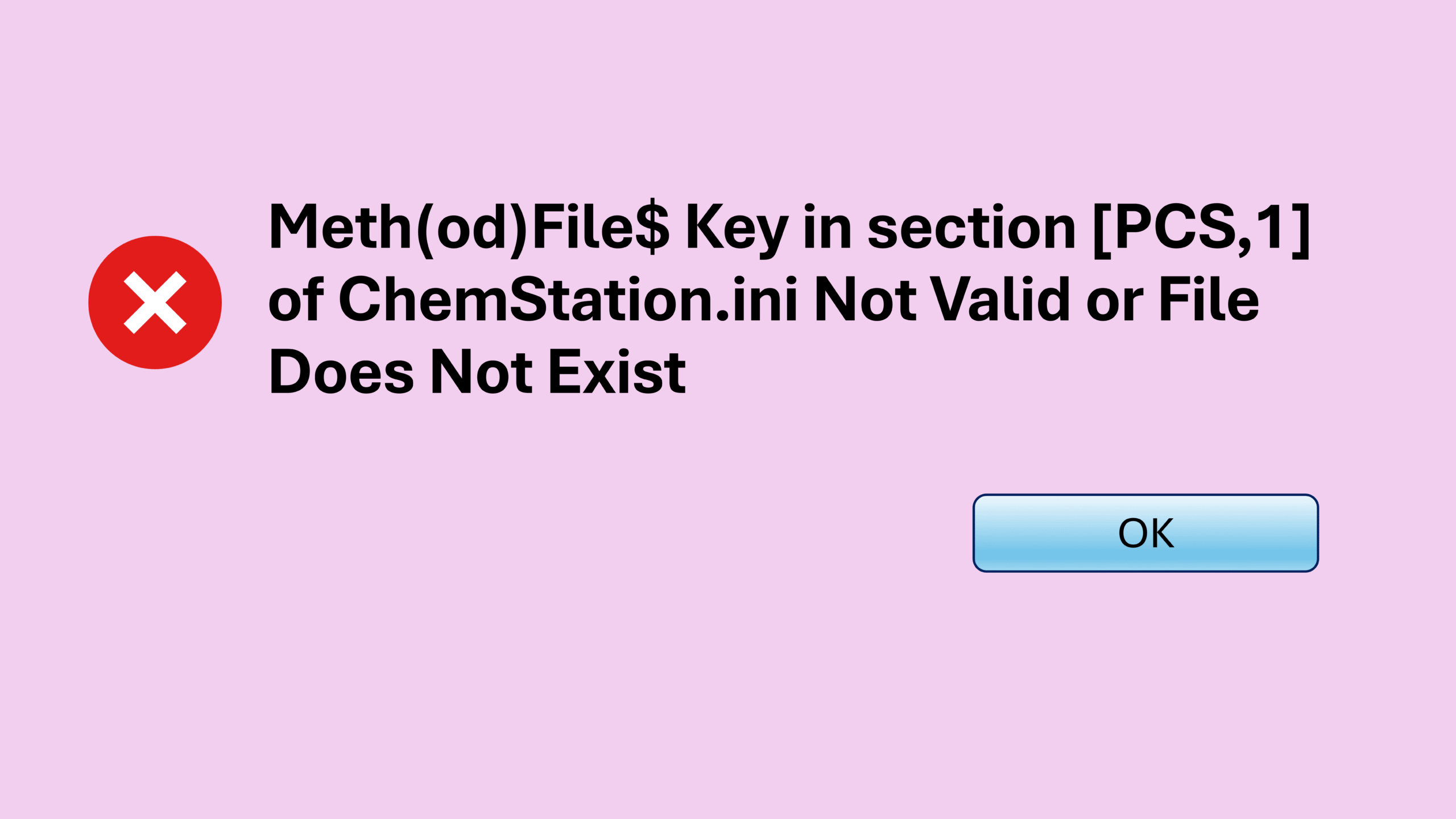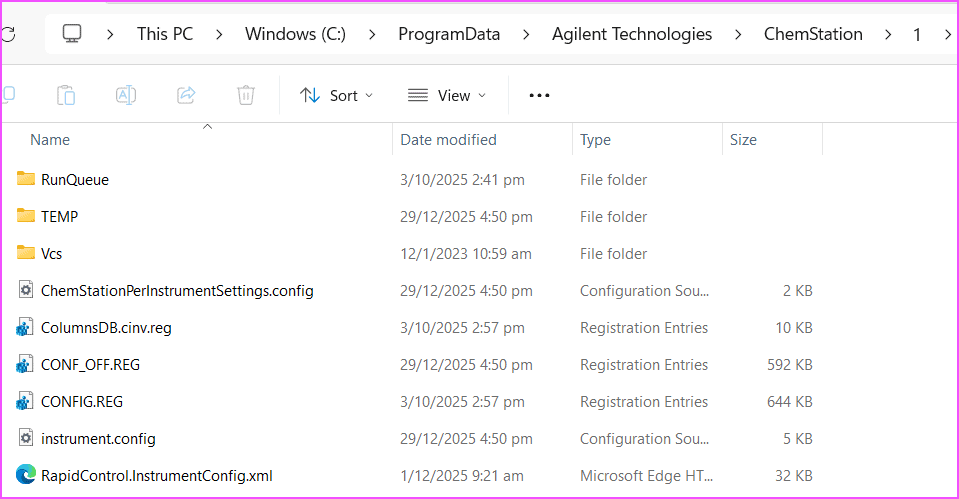

If you’ve ever launched OpenLab ChemStation only to be greeted by an empty white window, you’re definitely not the only one. This ChemStation blank screen problem has been popping up at multiple sites recently, and after helping several users fix it, I decided to put the full solution into one friendly, easy-to-follow guide. Let’s walk through what causes the issue, how to confirm it, and most importantly — how to get ChemStation running normally again.
What You’ll See During the ChemStation Blank Screen Issue
When this issue appears, ChemStation opens… but nothing loads. The window stays completely blank — both in online and offline mode — even after restarting the PC or the GC.
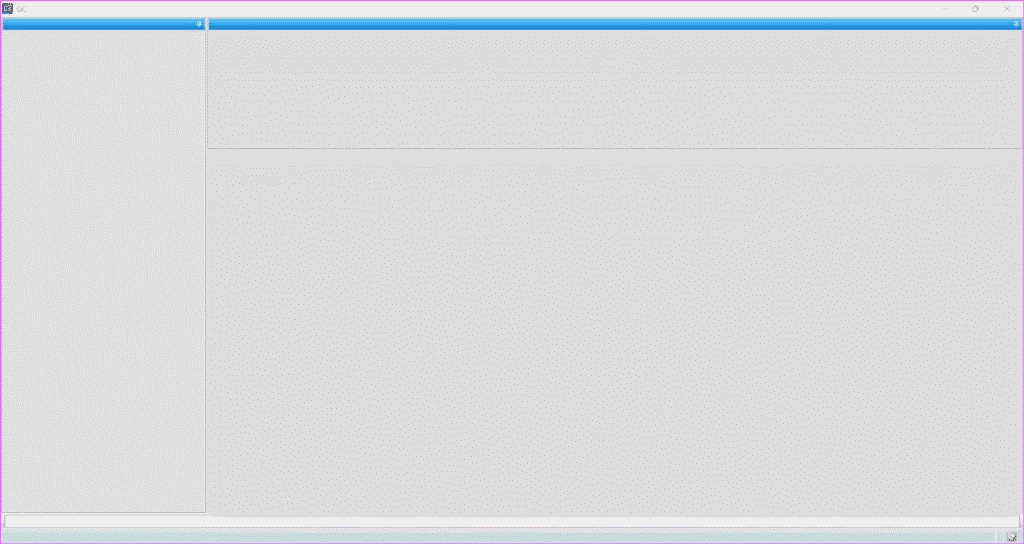
This symptom alone doesn’t tell you much, but the root cause is surprisingly specific.
Why the ChemStation Blank Screen Happens
Around August–September 2025, several Windows updates caused a key system file to disappear. When that file goes missing, ChemStation cannot render its interface, resulting in a completely blank screen.
The file you need to check is:
C:\Windows\SysWOW64\ctl3d32.dll
If ctl3d32.dll is missing, that’s the reason for your ChemStation blank screen.
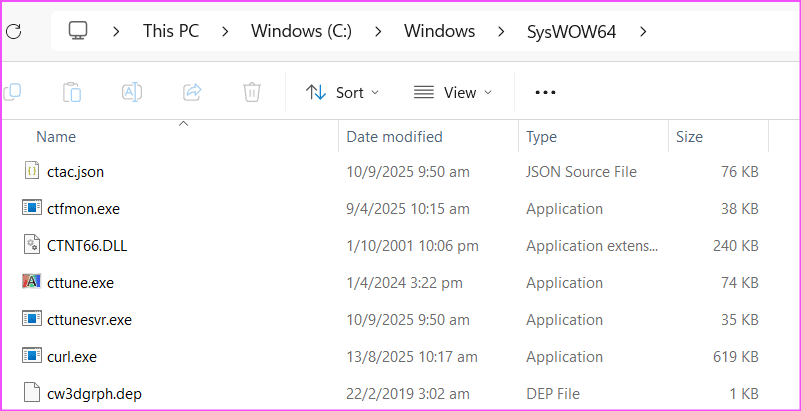
As soon as this file is restored, ChemStation works again.
How to Fix the ChemStation Blank Screen Issue (Step-by-Step)
Before doing anything, close ChemStation. If it’s frozen, end the task through:
Task Manager → End Task
After that, follow these steps:
1. Restart the PC
A quick reboot ensures no background ChemStation process keeps the file locked.
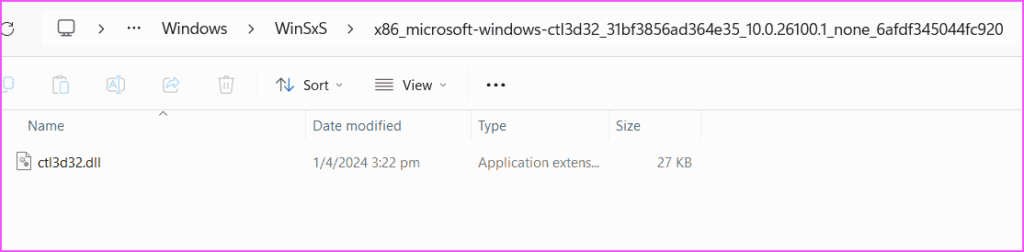
2. Find the Missing File in WinSxS
Go to:
C:\Windows\WinSxS\x86_microsoft-windows-ctl3d32_XXXXXXXX
The folder name ends with random characters, but the beginning must match:
x86_microsoft-windows-ctl3d32
Inside that folder, you will see ctl3d32.dll.
3. Copy the File to SysWOW64
Copy ctl3d32.dll from WinSxS and paste it into:
C:\Windows\SysWOW64
Depending on your IT policies, you may need admin rights. If the file does not exist anywhere on your PC, you can copy it from another working PC.
Once the file is in place, ChemStation will open normally again.
Alternative Fix (Not Recommended)
You can also uninstall the problematic Windows update. However, this method is slower, harder to verify, and may affect other system functions. Copying ctl3d32.dll is by far the cleaner fix.
Key Takeaways
- The ChemStation blank screen issue is caused by a missing system file (ctl3d32.dll) after a Windows update.
- Restoring the DLL to C:\Windows\SysWOW64 resolves the issue instantly.
- The fix is safe, quick, and works on all PCs affected during the August–September 2025 update window.
- You only need the file from WinSxS or another working PC.
Before You Go
If this walkthrough helped you recover from the ChemStation blank screen issue, consider sharing it with teammates who rely on OpenLab ChemStation daily. These Windows-related glitches appear unexpectedly, so having a simple fix ready can save a lot of downtime across your lab.
If you want more GC troubleshooting tips, feel free to browse the GC Troubleshooting section or check out the GC Fundamentals on my site to boost your GC skills and understanding.