

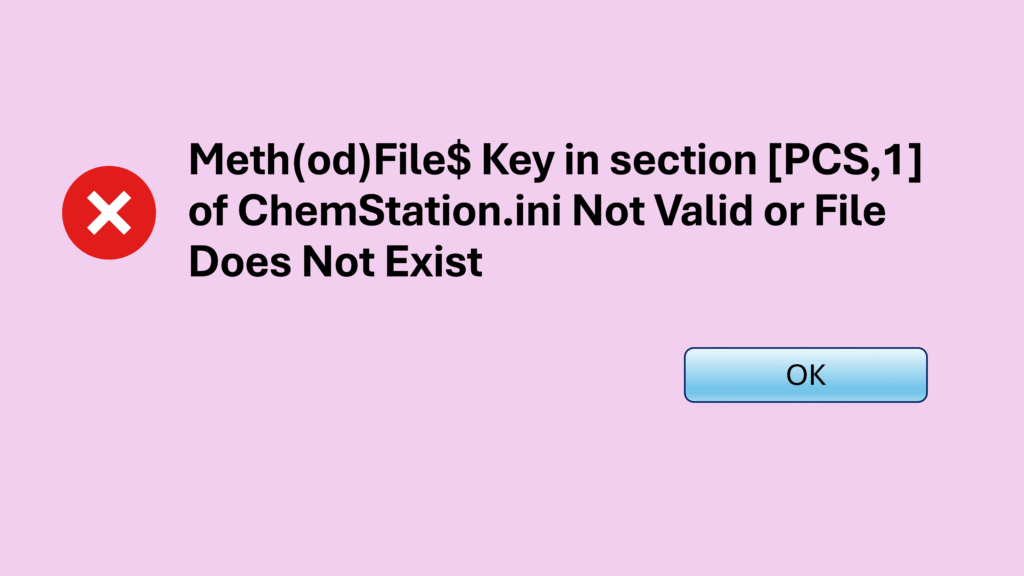
If you have ever launched ChemStation and suddenly hit the ChemStation method error saying “Meth(od)File$ key in section [PCS,1] of Chemstation.ini not valid or the specified file does not exist”, don’t worry — you are not alone. This ChemStation method error looks intimidating at first, but in reality, it is one of the most common and easiest issues to resolve. In fact, once you understand what ChemStation is trying to do behind the scenes, fixing this error becomes a straightforward task rather than a stressful troubleshooting session.
Meth(od)File$ Key in ChemStation.ini Not Valid or File Does Not Exist
This ChemStation method error appears when the software tries to load a specific method file during startup, but that method is no longer available in the expected location. Depending on which instrument you are launching, the message may reference [PCS,1], [PCS,2], [PCS,3], or [PCS,4]. Although the instrument number changes, the root cause — and the fix — remains exactly the same.
What This ChemStation Method Error Really Means
At its core, this ChemStation method error is simply telling you that ChemStation is configured to open a specific method file at launch, but that method cannot be found. This usually happens for very normal reasons. For example, the method might have been deleted, moved to another folder for backup, renamed, or archived during housekeeping. As a result, ChemStation cannot locate it and raises the error as a safety alert — nothing more than that.
So, instead of worrying that ChemStation is broken, think of this message as ChemStation politely asking for help to find its missing method.
How to Fix the ChemStation Method Error Step by Step
Before making any changes, click OK on the error message to acknowledge it. Then, close all ChemStation windows completely and restart your PC. This ensures no background processes are holding configuration files open.
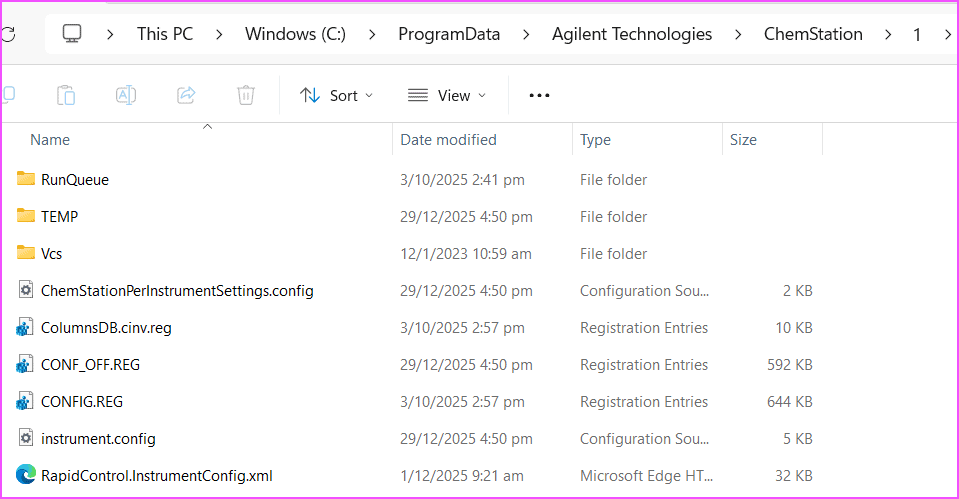
Next, navigate to the following path:
C:\ProgramData\Agilent Technologies\ChemStation
Make sure hidden files and file extensions are enabled in Windows, otherwise you will not see the required files.
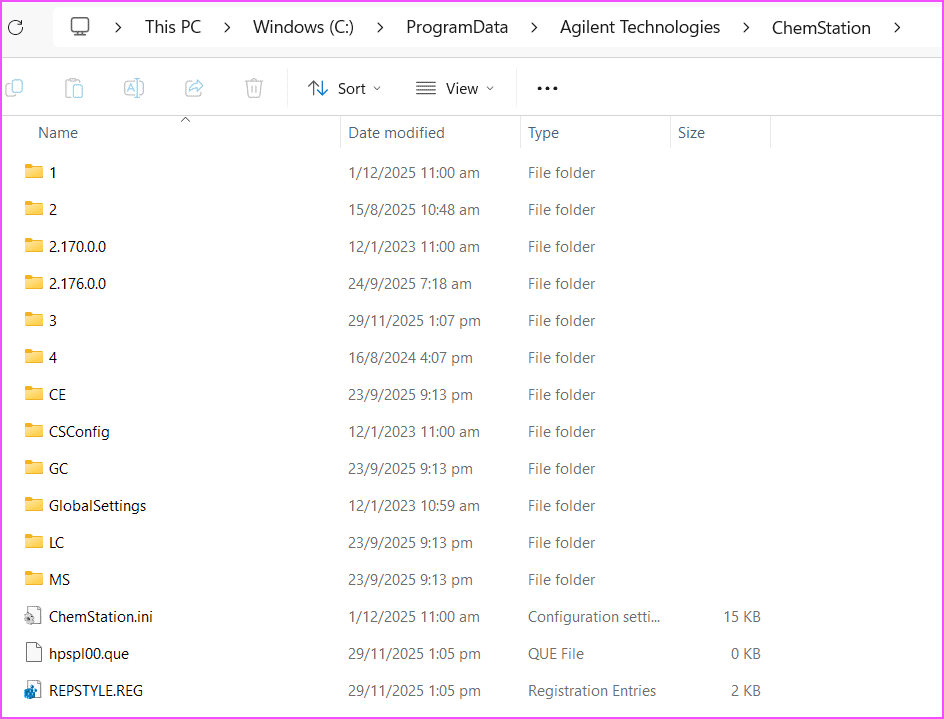
Finding the Missing Method Name in ChemStation.ini
Once you locate ChemStation.ini, open it using a text editor. Scroll down to the instrument matching the error message — for example [PCS,3] if the error referenced that instrument. Inside this instrument, look for the key called _METHFILE$. The value next to it is the exact method name ChemStation is trying to load.
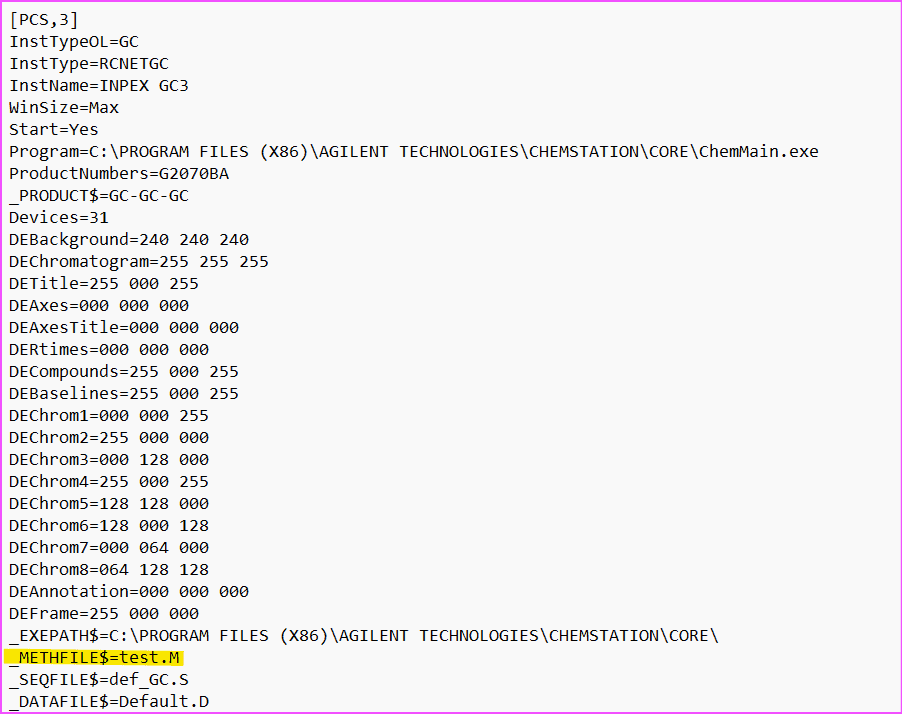
Now that you know which method ChemStation expects, fixing the error becomes simple.
Ways to Restore or Replace the Missing Method
There are several easy ways to resolve this ChemStation method error, depending on what happened to the method:
- If the method was deleted, restore it from the Windows recycle bin.
- If it was moved, copy the entire method folder (with the .M extension) back into the method directory.
- If it was renamed, rename the method folder to match the name shown in _METHFILE$.
- If the original method is gone for good, duplicate any existing method and rename the copy accordingly.
- Alternatively, edit _METHFILE$ in ChemStation.ini to point to a method that already exists.
All of these approaches work because the goal is simply to make sure ChemStation finds a valid method during startup.
Where to Find the ChemStation Method Directory
If you are unsure where your methods are stored, stay in ChemStation.ini and look for the key _CONFIGMETPATH$ under the same [PCS,x] section. For example:
_CONFIGMETPATH$=C:\Users\Public\Documents\ChemStation\3\Methods\
This path tells you exactly where ChemStation expects all method folders to reside. Once the required method exists in this directory, the ChemStation method error will disappear.
ChemStation Method Error in Newer Software Versions
In newer ChemStation versions, the message may look different. For instance, you might see:
“Required default method (DEF_GC.M) not found in C:\Users\Public\Documents\ChemStation\3\METHODS\. Please copy over the default method from C:\Program Files (x86)\Agilent Technologies\ChemStation\DATA_ARCHIVE\gc.”
In this case, ChemStation clearly tells you what to do. Simply copy DEF_GC.M from the installation archive directory below into your method folder, relaunch ChemStation, and the issue is resolved.
C:\Program Files (x86)\Agilent Technologies\ChemStation\DATA_ARCHIVE\gc\MethodsKey Takeaways
- The ChemStation method error is caused by a missing or renamed method file
- The software is not broken — it just cannot find what it expects
- Fixing the issue usually takes only a few minutes once the method name is identified
- Understanding ChemStation.ini makes troubleshooting far easier in the future
Next Steps
If you found this guide helpful, consider exploring other troubleshooting tips at GC Troubleshooting on PetroChromatics. These practical guides are written to save you time, reduce stress, and help you work more confidently with your GC systems.
Alternatively, browse a handful of my Free GC Calculators or boost your GC Fundamentals.
Thank you for sharing
No problem, glad you find it helpful.