
If you’ve ever faced a ChemStation sequence crash, you know how unsettling it feels — especially when everything looks normal until you hit Run Sequence. This post is part of my Agilent OpenLab ChemStation troubleshooting series, where I document real issues I’ve encountered in the field and how I worked through them step by step.
At first glance, this issue can feel intimidating. However, don’t worry. I’ll walk you through exactly what I did so you can follow along and get your system back up quickly.
Issue Description: When a ChemStation Sequence Crash Happens
This ChemStation sequence crash occurred on an Agilent 7890 GC controlled by OpenLab ChemStation C.01.07.
Here’s what made the situation confusing:
- The ChemStation software launched normally
- Communication with the GC was stable
- A single run (Run Control → Run Info) worked without any issue
However, things changed when running a sequence.
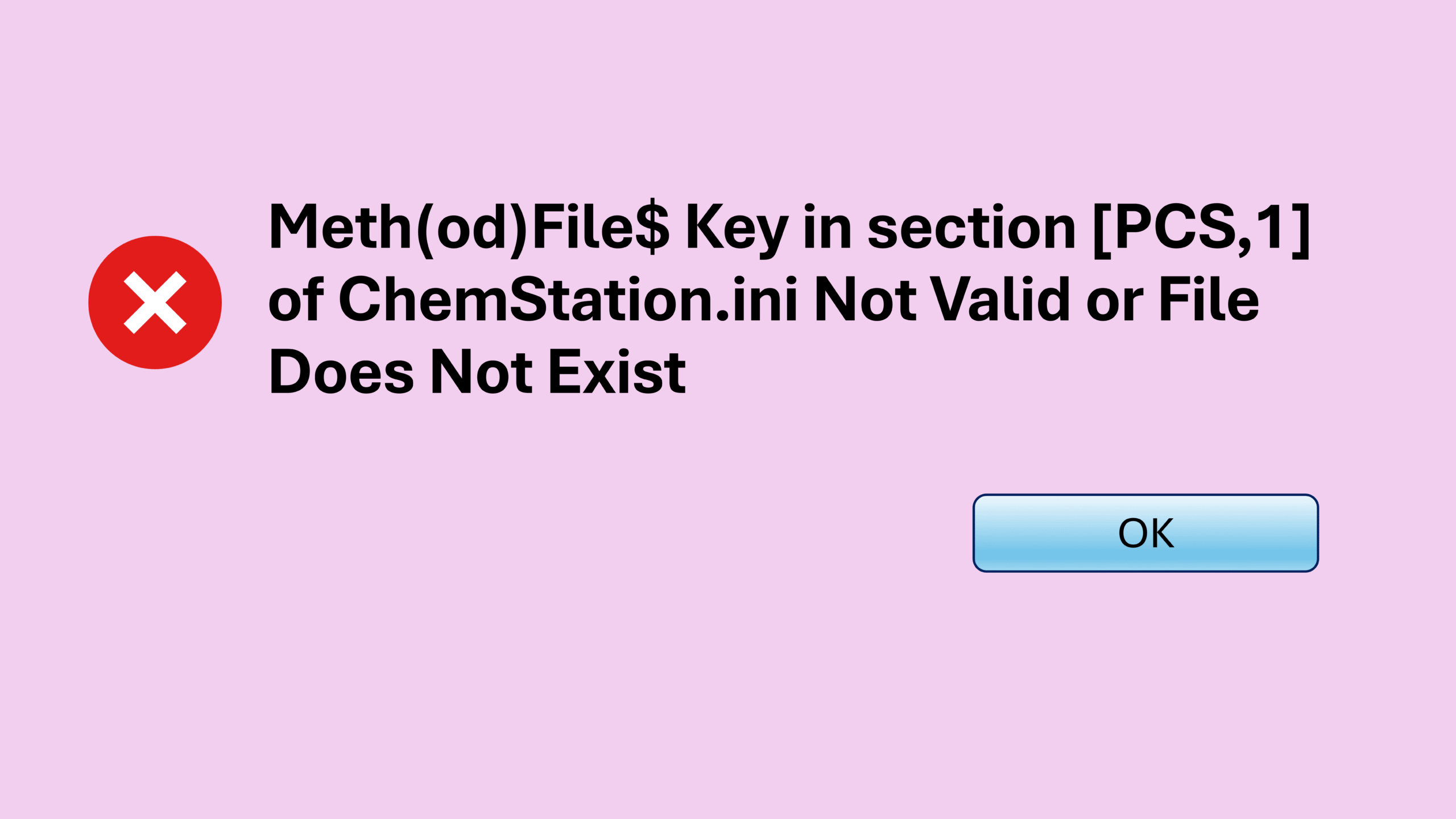
In this lab, the SOP strictly requires sequence runs, so single runs were not an option. While ChemStation allowed the sequence to be defined correctly, the moment the sequence started, the software would hang for a few seconds and then force close.
Restarting the PC and relaunching ChemStation didn’t help.
How I Fixed the ChemStation Sequence Crash
From experience, a ChemStation sequence crash like this usually points to corrupted configuration files. Instead of guessing which file was affected, I found it faster to reset all related configuration files and let ChemStation rebuild them.
Before starting, I always restart the entire PC to ensure no ChemStation processes are running in the background.
Once restarted, follow the steps below.
Locate ChemStation Configuration Files
You’ll need to locate configuration files in two different locations.
First Configuration Folder
For the version I worked with, the files were located at:
C:\ProgramData\Agilent Technologies\ChemStation\1
To see ProgramData, make sure Hidden files are enabled under View in Windows Explorer.
For other ChemStation versions, the folder may instead be:
C:\Chem32\1
If your instrument number is not 1, the folder may be 2, 3, or 4, but in most cases, you’ll only see “1”.
Inside this folder, you should find the following files:
- ChemStationPerInstrumentSettings.config
- CONF_OFF.reg
- CONFIG.reg
- Instrument.config
- RapidControl.InstrumentConfig.xml
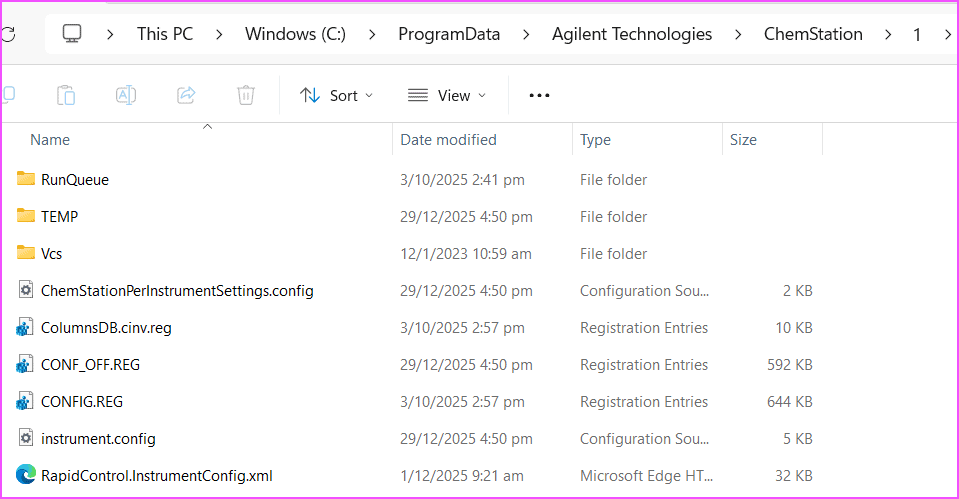
To see file extensions like .config and .reg, make sure File name extensions are enabled under View.
Second Configuration Folder
The second location is:
C:\ProgramData\Agilent Technologies\ChemStation\GlobalSettings
Inside this folder, you should find:
- global.config
For some older versions, this file may be located under:
C:\Chem32

Rename the Configuration Files
Next, add “.old” to the end of each configuration file.
They should now look like this:
- ChemStationPerInstrumentSettings.config.old
- CONF_OFF.reg.old
- CONFIG.reg.old
- Instrument.config.old
- RapidControl.InstrumentConfig.xml.old
- Global.config.old
Each time you press Enter, Windows will warn you about changing the file extension. Just click OK and continue.
Once done, close the folder.
Relaunch and Reconfigure ChemStation
Now, double-click ChemStation Online to launch the software.
Because the configuration files were renamed, ChemStation will prompt you to reconfigure the GC. This is expected.
Follow these steps:
- Select the correct GC model from the left panel
- Click the right arrow to move it to the right panel
- When the next window appears, enter the GC IP address
- Click “Get GC Configuration” at the top
Once the connection is established, ChemStation will launch normally.
In my case, the ChemStation sequence crash was fully resolved. The entire process took 5–10 minutes.
Key Takeaways
- A ChemStation sequence crash often points to corrupted configuration files
- Single runs working does not rule out configuration issues
- Renaming config files allows ChemStation to rebuild clean settings
- This fix is fast once you’ve done it once
What You Can Do Next
If you’re running Agilent OpenLab ChemStation daily, knowing where these configuration files live can save you hours of downtime. Bookmark this guide or keep it handy for the next time ChemStation behaves unexpectedly.
You may also want to explore other posts in this GC Troubleshooting series to build confidence handling similar issues.