
If you suddenly see a Chemstation instrument controller error when launching your system, you’re not alone. This problem can be extremely frustrating, especially when everything worked perfectly before. However, once you understand how the registration works, fixing the issue becomes surprisingly simple.
In fact, knowing this trick can save you countless hours of troubleshooting.
Before we dive in, just to let you know that this article is part of my Chemstation Troubleshooting series which you can find the summary for all other related posts at ChemStation Troubleshooting: All Errors and Fixes in One Place.
Why the Chemstation Instrument Controller Error Happens
During the installation of Agilent OpenLab Chemstation, the software automatically records the computer name of the PC and registers it as the instrument controller.
Initially, everything works smoothly.
However, problems appear later if the PC name changes. This can happen for several reasons:
- Corporate IT policies may rename the computer
- Someone may accidentally change the PC name
- The system might be renamed during network configuration
When this happens, the registered instrument controller no longer matches the actual computer name.
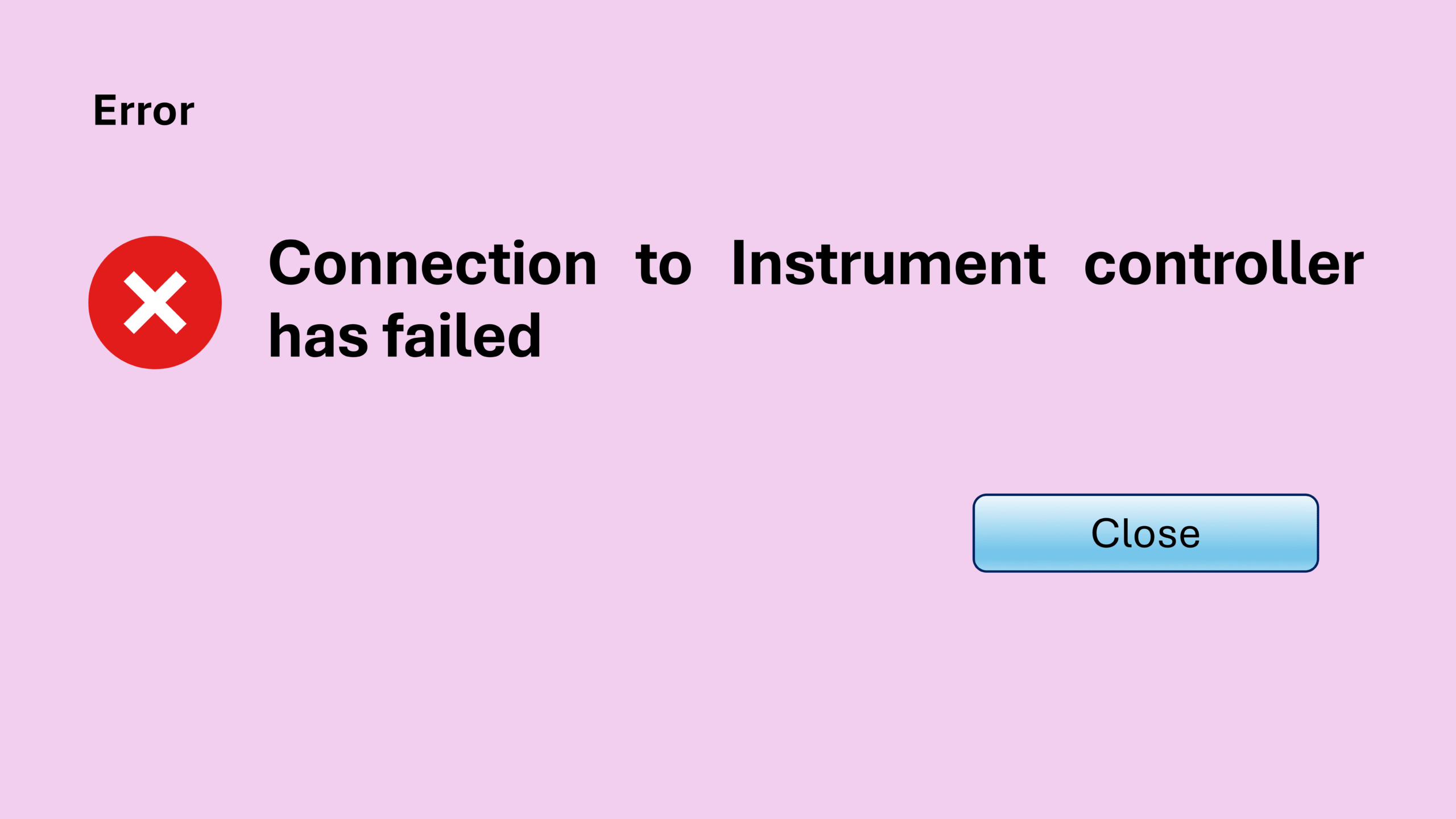
As a result, when you launch Chemstation, the system may display the following error:
“Connection to Instrument Controller has failed.”
At this point, many users get stuck. Without understanding the root cause, it can take days or even months to solve. In extreme cases, some users even reinstall the entire software on a new computer.
Clearly, that’s a painful solution.
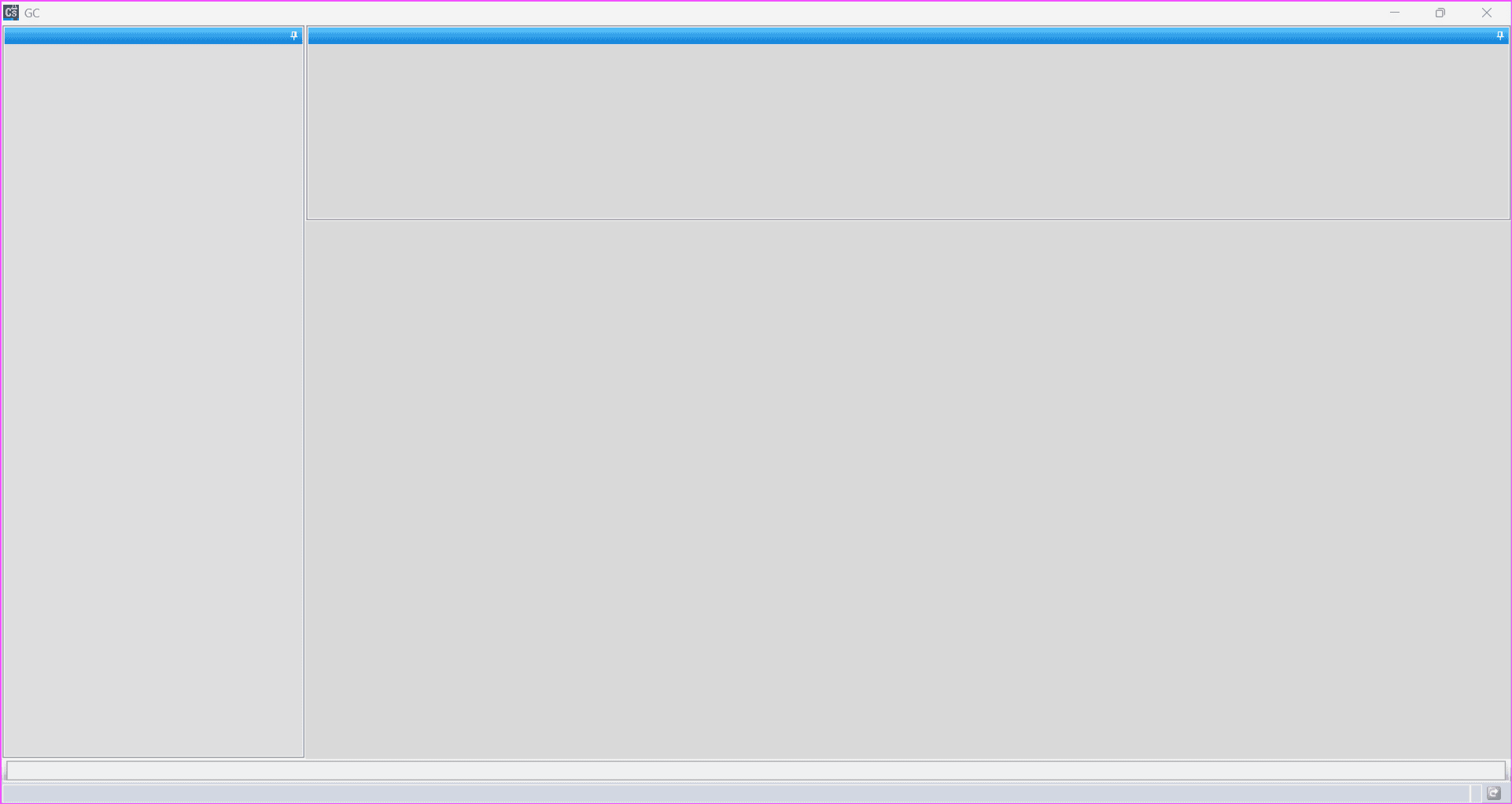
Even worse, you cannot open the OpenLab Control Panel, which makes the problem feel impossible to fix.
Fortunately, Agilent anticipated this scenario, and the software actually provides a simple way to register the new PC name with the instrument controller.
How to Register the New Chemstation Instrument Controller Name
The fix is straightforward and takes around 30 minutes.
Follow the steps below carefully.
Step 1 – Delete Existing Chemstation Shortcuts
First, check your desktop.
If you see Chemstation Online or Chemstation Offline shortcuts, delete them.
This step ensures that old references to the previous instrument controller configuration do not interfere with the new registration.
Step 2 – Locate the Registration Script
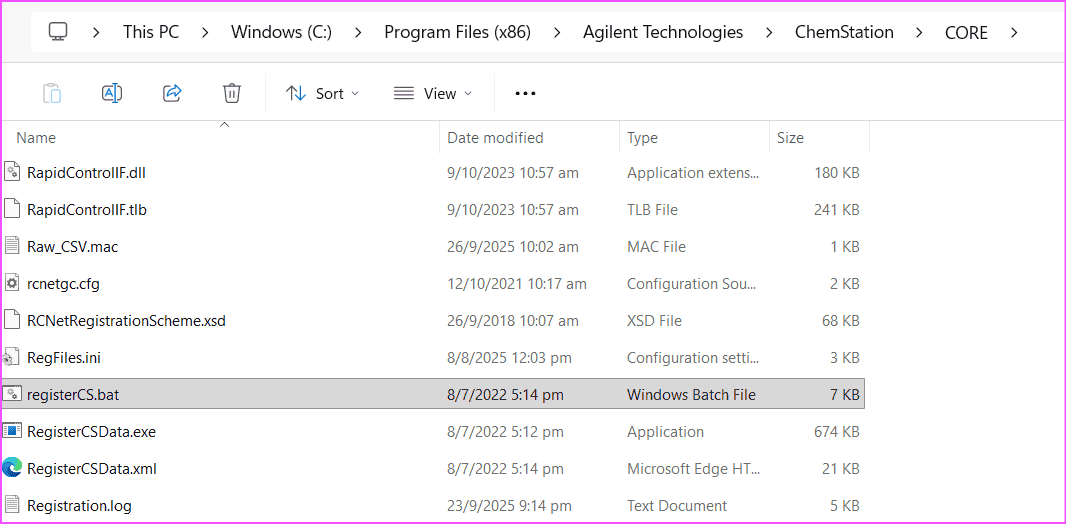
Next, browse to the following folder:
C:\Program Files (x86)\Agilent Technologies\Chemstation\CORE
Inside this folder, look for the file:
registerCS.bat
This small script is responsible for updating the instrument controller registration.
Step 3 – Run the Registration Script
Now simply double-click the file:
registerCS.bat
Once executed, the script automatically registers the current PC name as the new instrument controller.
Step 4 – Open OpenLab Control Panel
After the script finishes running, you can open OpenLab Control Panel normally again.
The software will now recognize the updated instrument controller.
Step 5 – Create and Configure the Instrument
Inside OpenLab Control Panel, create a new instrument configuration and configure it as you normally would.
Because the Chemstation instrument controller now matches the PC name, everything should work correctly again.
Step 6 – Update the Chemstation License
Next, log in to your Agilent SubscribeNet account.
You must:
- Return the license associated with the old PC name
- Redeem a new license using the updated computer name
This step ensures your Chemstation instrument controller is properly licensed on the renamed system.
Step 7 – Restore Your Data and Methods
Finally, copy your existing files to the new instrument folder, including:
- Methods
- Data
- Sequences
After that, you can continue using the system as usual with the corrected Chemstation instrument controller configuration.
Key Takeaways
A Chemstation instrument controller error caused by a computer name change can look very serious at first. However, the actual solution is straightforward.
Key points to remember:
- Chemstation registers the PC name as the instrument controller during installation
- If the PC name changes, the controller registration becomes invalid
- Running registerCS.bat updates the controller registration
- The entire fix usually takes less than 30 minutes
Most importantly, this method saves you from reinstalling Chemstation from scratch.
Practical Tip for GC Users
If you work with Agilent GC systems, it’s a good idea to document small troubleshooting tricks like this.
Simple fixes like the Chemstation instrument controller registration can prevent long downtime in busy laboratories.
If you want to learn more, browse Chemstation troubleshooting series or check out other posts below:
- ChemStation Blank Screen: How to Fix the Issue Quickly
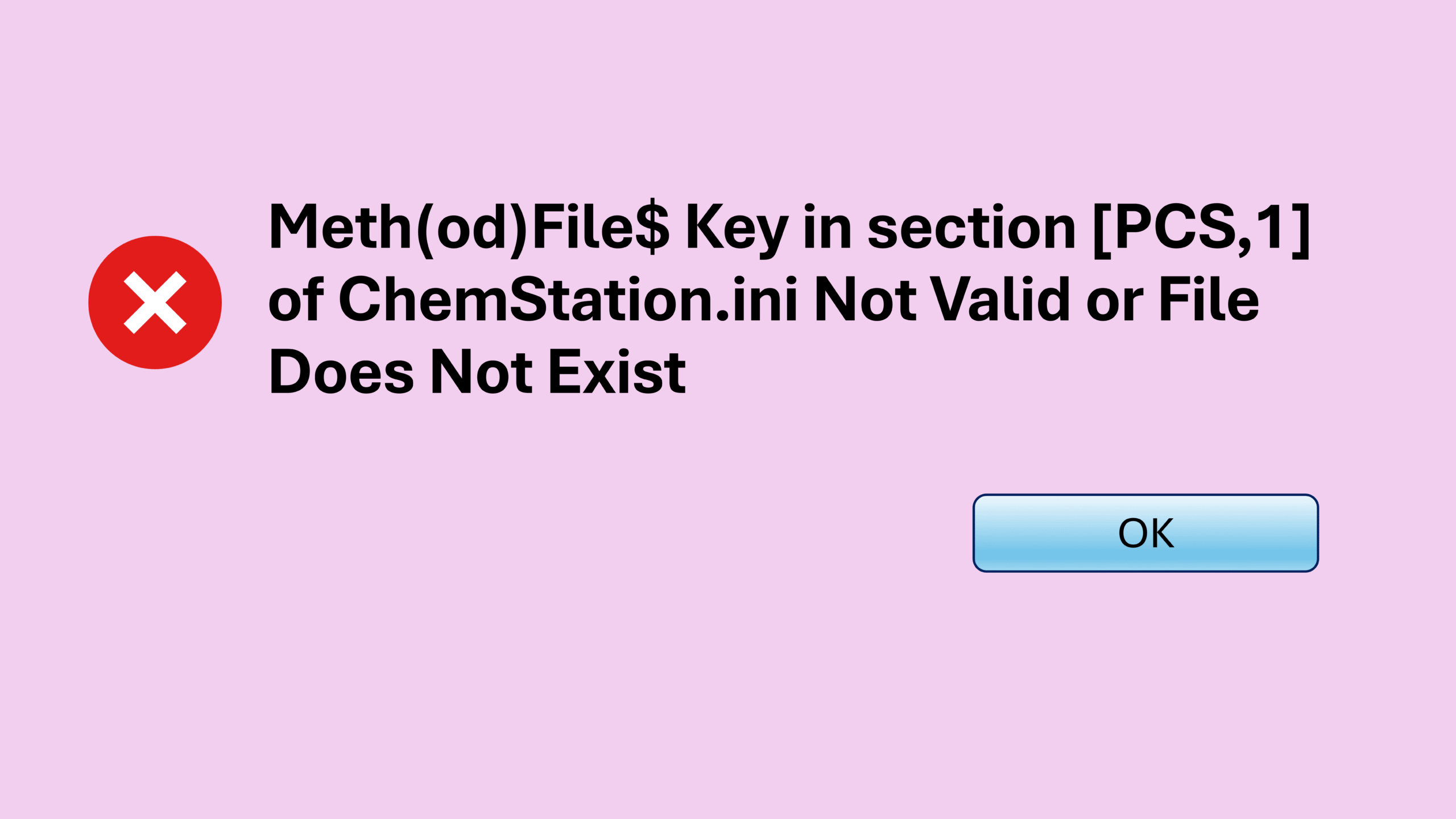
- ChemStation Method Error: Meth(od)File$ key in section [PCS,1] of Chemstation.ini not valid
- ChemStation Sequence Crash: How I Fixed a Sudden ChemStation Shutdown
- ChemStation Configuration Error: Fix Failed to Initialize
- Fixing the ChemStation License Error: “Failed to Acquire One or More Mandatory Licenses”
- ChemStation GC Offline When Starting a Run? Here’s One Fix That Worked
- ChemStation Server Connection Failed: Quick Fix for the “Connection to the Selected Server Failed” Error