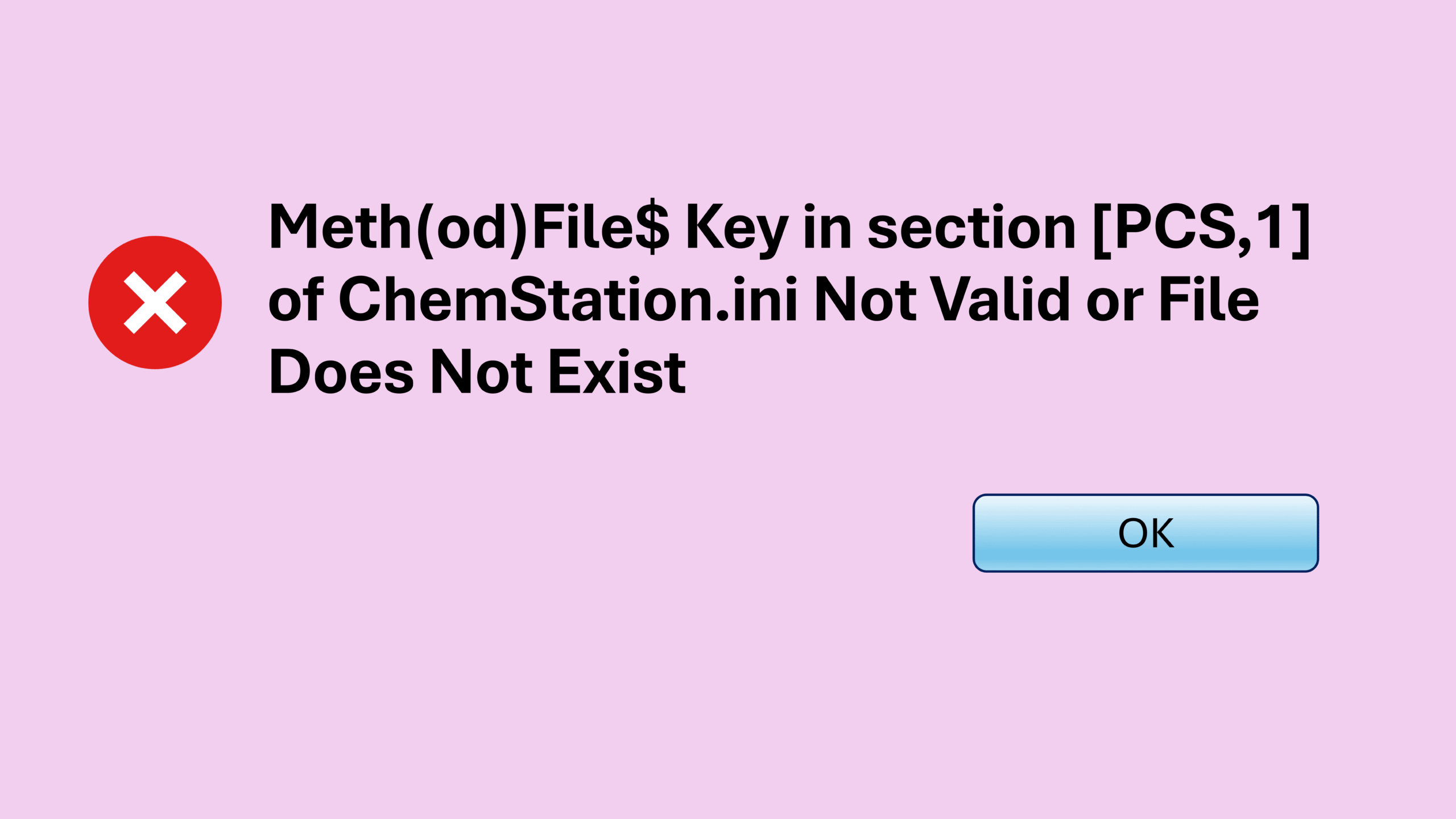

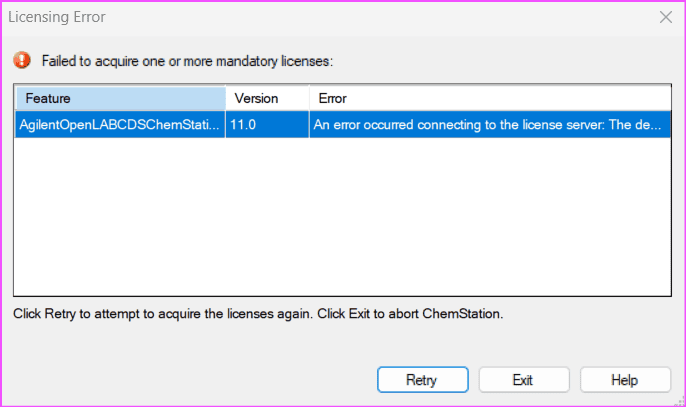
If you work with Agilent OpenLab ChemStation, you may eventually encounter the ChemStation license error that says “Failed to acquire one or more mandatory licenses.”
This ChemStation license error appears in many laboratories I know of, and I have personally experienced it numerous times. Fortunately, the solution is usually simple once you know where to look.
In this guide, I’ll walk through the steps I normally follow to resolve the error quickly so ChemStation can launch normally again.
Before we dive in, just to let you know that this article is part of my Chemstation Troubleshooting series which you can find the summary for all other related posts at ChemStation Troubleshooting: All Errors and Fixes in One Place.
Why the ChemStation License Error Happens
The error usually appears after something unexpected happens to the computer.
For example, I have seen the error occur when:
- The PC suddenly shuts down due to a power trip
- The computer restarts unexpectedly
- The system performs a normal reboot
I’m not entirely sure what exactly causes the issue. However, the steps below have fixed the error every time in my case.
Step 1: Check the License Status
Before attempting any fixes, first confirm that the license itself is still valid.
To check the license status:
- Open OpenLab Control Panel from the desktop shortcut.
- Select Administration.
- Click Licenses.
- Ensure a license file with the
.LICextension appears and shows Valid.
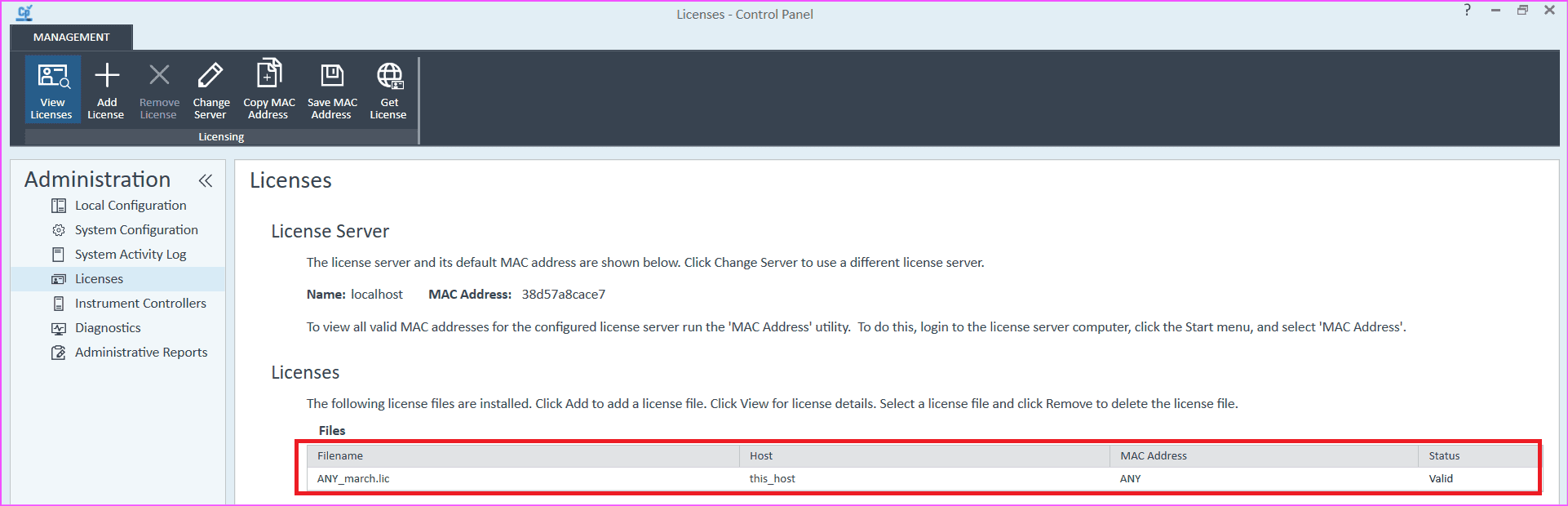
If the license shows valid, then the ChemStation license error is likely caused by a license service issue rather than an invalid license.
Step 2: Locate the ChemStation License File
Next, you need a copy of the license file.
If you already have the .LIC file saved somewhere, you can move directly to the next step. Otherwise, locate it from the default installation folder:
C:\Program Files (x86)\Agilent Technologies\OpenLab Services\Licensing\Flexera\licenses\AGTOL
Inside this folder, you should see the same LIC license file used by the system.
Copy that file to your desktop.
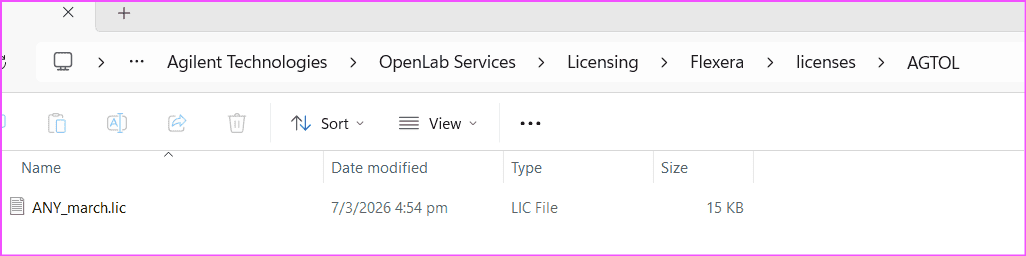
This file will be needed to fix the ChemStation license error in the next step.
Step 3: What If No License File Exists?
Sometimes the ChemStation license error appears because the system no longer has a valid license file.
If the OpenLab Control Panel shows no valid license (as shown in Figure 2 earlier), then the .LIC file will also be missing from the folder:
C:\Program Files (x86)\Agilent Technologies\OpenLab Services\Licensing\Flexera\licenses\AGTOL
In that situation, the only solution is to retrieve the original license file.
Generally, you have two options:
- Contact the engineer or vendor who supplied the GC system. They often keep a copy of the license file.
- Retrieve the license from Agilent SubscribeNet
You can log in here:
https://agilent.subscribenet.com/control/agil/login?nextURL=%2Fcontrol%2Fagil%2Findex
The process of retrieving the license from SubscribeNet is a bit longer, so I will probably write a separate blog post about it in the near future.
Step 4: Reinstall the License to Fix the ChemStation License Error
Once you have the .LIC file ready, you can reinstall it.
Follow these steps:
- Go back to OpenLab Control Panel → Administration → Licenses.
- Click the existing LIC file.
- Select Remove License at the top.
- Wait until the license is fully removed.
- Click Add License.
- Browse to the license file you copied to the desktop.
After a few seconds, the license status should display Valid again.
This process usually resolves the ChemStation license error immediately.
Launch ChemStation Again
Now try launching OpenLab ChemStation again.
In most cases, the ChemStation license error message “Failed to acquire one or more mandatory licenses” will no longer appear.
Because this issue can happen multiple times in a laboratory environment, it is helpful to keep these steps recorded somewhere for quick reference.
Key Takeaways
- The ChemStation license error “Failed to acquire one or more mandatory licenses” is common in many labs.
- It often happens after power interruptions or system restarts.
- The fix usually involves removing and re-adding the
.LIClicense file. - If the license file is missing, it can be retrieved from your vendor or Agilent SubscribeNet.
Knowing this quick procedure can save significant troubleshooting time when the ChemStation license error appears again.
Before You Go
If you frequently work with Agilent ChemStation, unexpected errors like this can interrupt important GC runs.
I regularly document practical troubleshooting fixes from real lab experience, so you can solve issues faster and keep your instruments running.
If this guide helped you resolve a ChemStation license error, feel free to share it with colleagues who might encounter the same problem in their lab.
Check out the following blog posts for specific ChemStation problems in Chemstation Troubleshooting series below:
- ChemStation Blank Screen: How to Fix the Issue Quickly
- ChemStation Method Error: Meth(od)File$ key in section [PCS,1] of Chemstation.ini not valid
- ChemStation Sequence Crash: How I Fixed a Sudden ChemStation Shutdown
- ChemStation Configuration Error: Fix Failed to Initialize
- ChemStation GC Offline When Starting a Run? Here’s One Fix That Worked
- Chemstation Instrument Controller Error – How to Fix PC Name Mismatch
- ChemStation Server Connection Failed: Quick Fix for the “Connection to the Selected Server Failed” Error