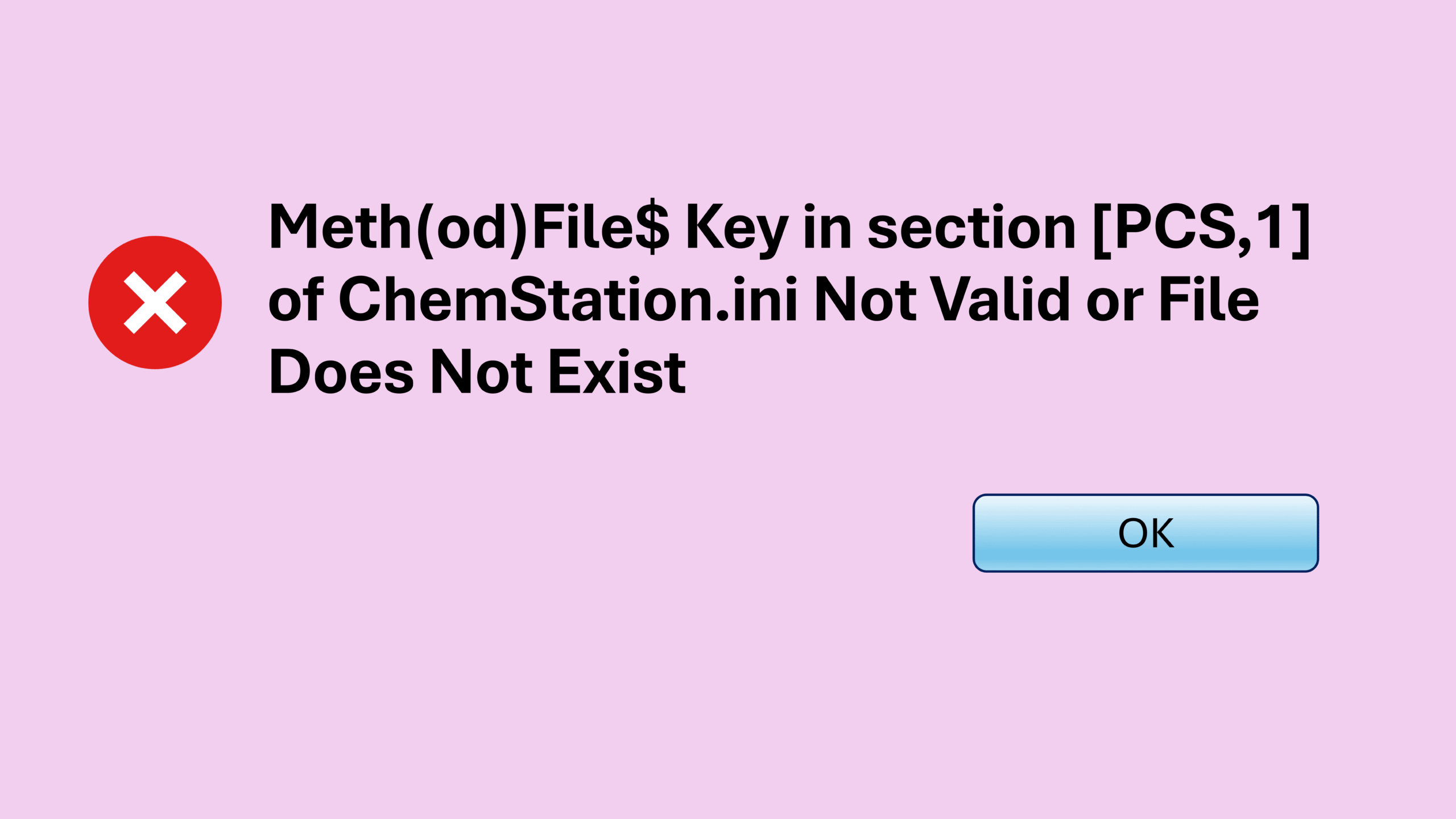

If you use Agilent OpenLab ChemStation, you may occasionally encounter the ChemStation server connection failed error when launching the software. The message usually appears as “Connection to the selected server failed.”
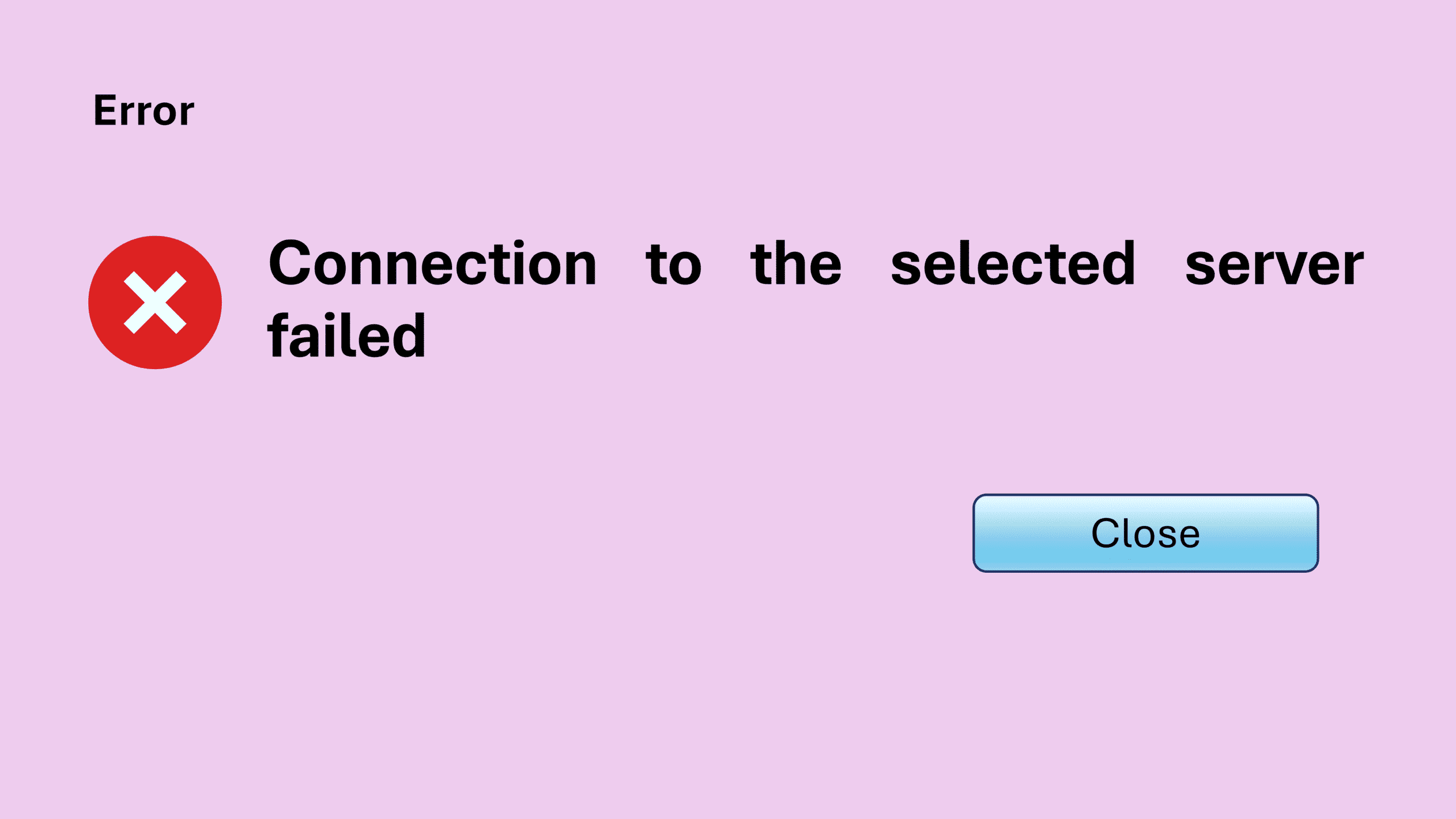
In this guide, I’ll walk through the two most common scenarios that cause the ChemStation server connection failed problem and how you can fix it quickly.
Before we dive in, just to let you know that this article is part of my Chemstation Troubleshooting series which you can find the summary for all other related posts at ChemStation Troubleshooting: All Errors and Fixes in One Place.
Why the ChemStation Server Connection Failed Error Appears
The error message typically appears when required background services are not ready or have stopped. In most cases, the issue is not serious and can be resolved in a minute or two.
In my experience, this problem usually happens in two scenarios.
Scenario 1: Launching ChemStation Too Quickly After Restart
The first scenario happens when the PC has just restarted, and the user launches OpenLab ChemStation almost immediately.
What happens here is simple. Although Windows has started, the services required by ChemStation are still loading in the background. As a result, the system cannot connect to the required server components, which triggers the error message.
Fortunately, this situation is easy to fix.
How to Fix It
Simply wait 1–2 minutes for Windows to fully start all required services. After that, launch ChemStation again.
In most cases, the ChemStation server connection failed error will not appear anymore.
Scenario 2: Required ChemStation Services Have Stopped
The second scenario is similar but slightly different.
Instead of launching the software too early, the problem occurs because some Agilent services have stopped running.
When this happens, the ChemStation server connection failed message appears even though the computer has been running for a while.
Fortunately, restarting those services usually solves the problem.
Step 1: Open Windows Services
First, type “services” into the Windows search bar and open Services.
Step 2: Sort the Services List
Next, click on “Name” to sort the services alphabetically.
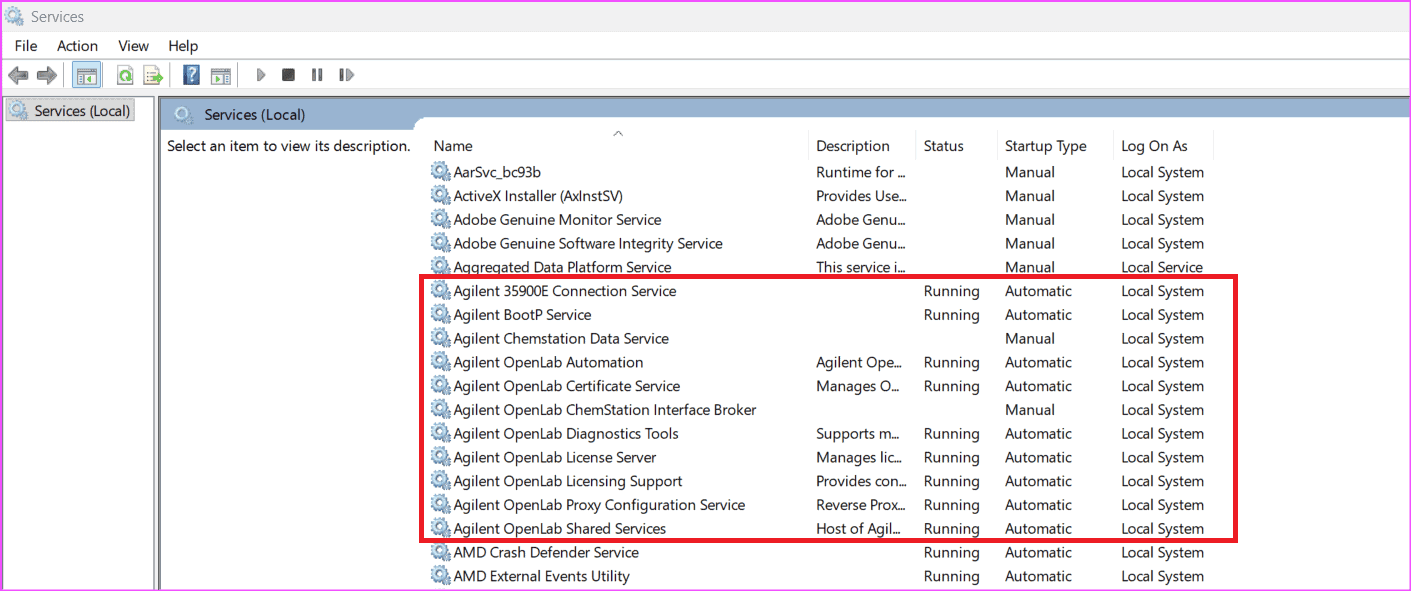
This step helps because all services required by ChemStation start with the word “Agilent.” Therefore, sorting by name brings them close together near the top of the list.
Step 3: Restart All Agilent Services
The one service I know for sure that affects the ChemStation server connection is Agilent OpenLab Shared Services.
However, I do not know if other services also affect the connection. Therefore, my rule of thumb is simple:
Restart every service that starts with “Agilent.”
To restart a service:
- Right-click the service.
- Select Restart if it is running.
- Select Start if it is stopped.
Some services are linked together. Because of that, Windows may show a prompt saying other services will restart as well. When this happens, simply accept the prompt and continue.
After restarting all the relevant services, the ChemStation server connection failed message usually disappears.
Problem solved.
Key Takeaways
- The ChemStation server connection failed error is usually caused by Agilent services not running.
- If the PC has just restarted, wait a minute before launching ChemStation.
- If the error persists, restart all Agilent services in Windows Services.
- In most cases, this quick fix removes the ChemStation server connection failed error immediately.
Continue Learning ChemStation Troubleshooting
If you work with GC systems running ChemStation, troubleshooting software issues is part of daily lab life.
You may also find these guides useful in this Chemstation Troubleshooting Series:
- ChemStation Blank Screen: How to Fix the Issue Quickly
- ChemStation Method Error: Meth(od)File$ key in section [PCS,1] of Chemstation.ini not valid
- ChemStation Sequence Crash: How I Fixed a Sudden ChemStation Shutdown
- ChemStation Configuration Error: Fix Failed to Initialize
- Fixing the ChemStation License Error: “Failed to Acquire One or More Mandatory Licenses”
- ChemStation GC Offline When Starting a Run? Here’s One Fix That Worked
- Chemstation Instrument Controller Error – How to Fix PC Name Mismatch
These resources cover other common problems that GC users encounter when running OpenLab ChemStation.